
A native filesystem interface that lets AI agents organize, search, and reference your documents naturally
Create named collections with descriptions that help Sage understand their purpose
Find content using pattern matching, semantic search, and natural language queries
See exactly which files are loaded in Sage's context window at any time
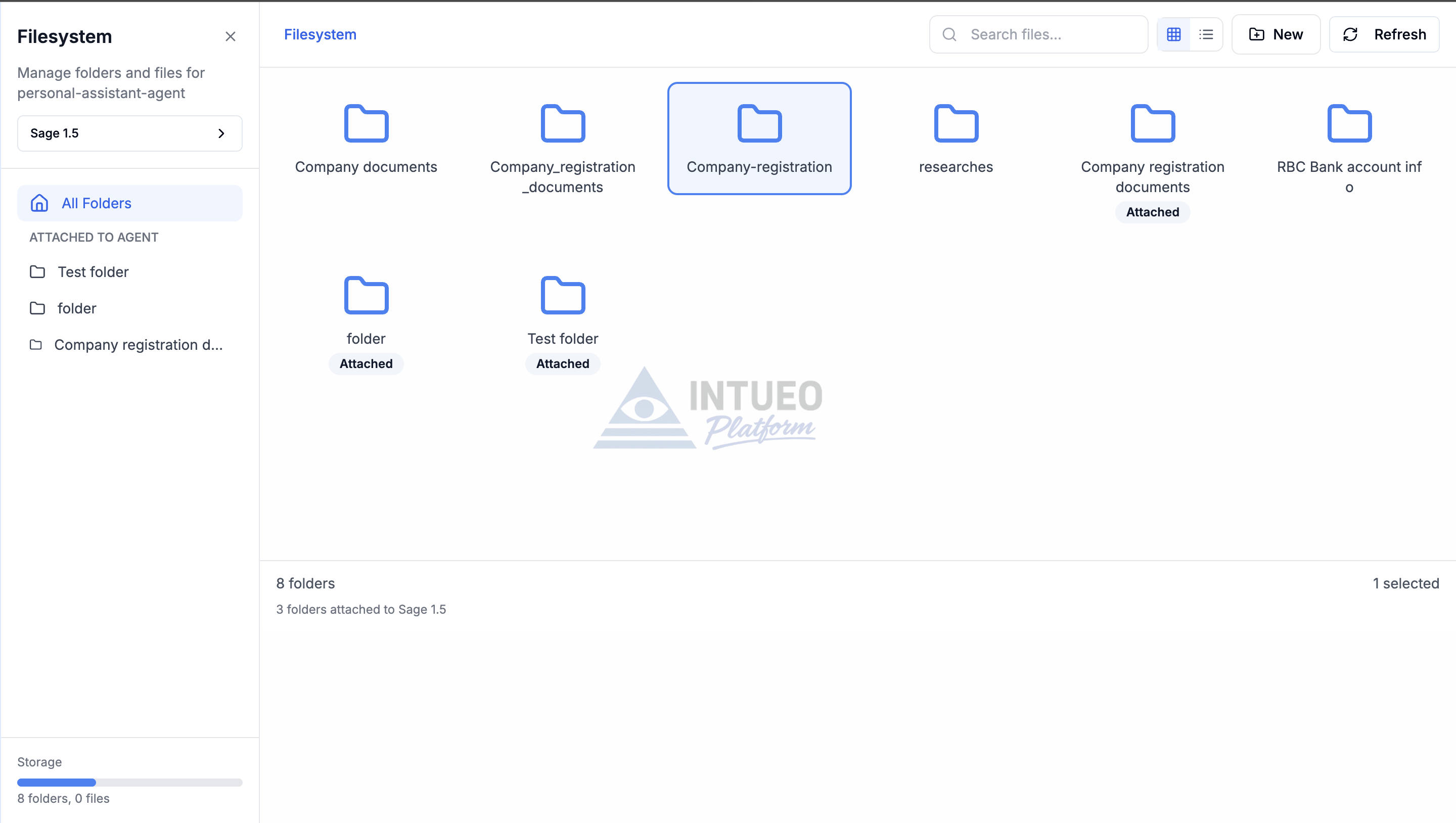
Sage's filesystem provides an interface for agents to organize and reference collections of documents—whether it's analyzing research papers, processing transcripts, answering questions from documentation, or reviewing contracts.
Drag and drop PDFs, transcripts, documentation, and other files into folders
Connect folders to your Sage agent to make their contents accessible
Sage uses filesystem tools to search, open, and reference relevant documents
View what's in context and manually guide Sage to the right files
Search across files using pattern matching to find specific keywords or phrases
Read specific files with line-level precision, opening and closing as needed
Find relevant content using AI-powered vector similarity search
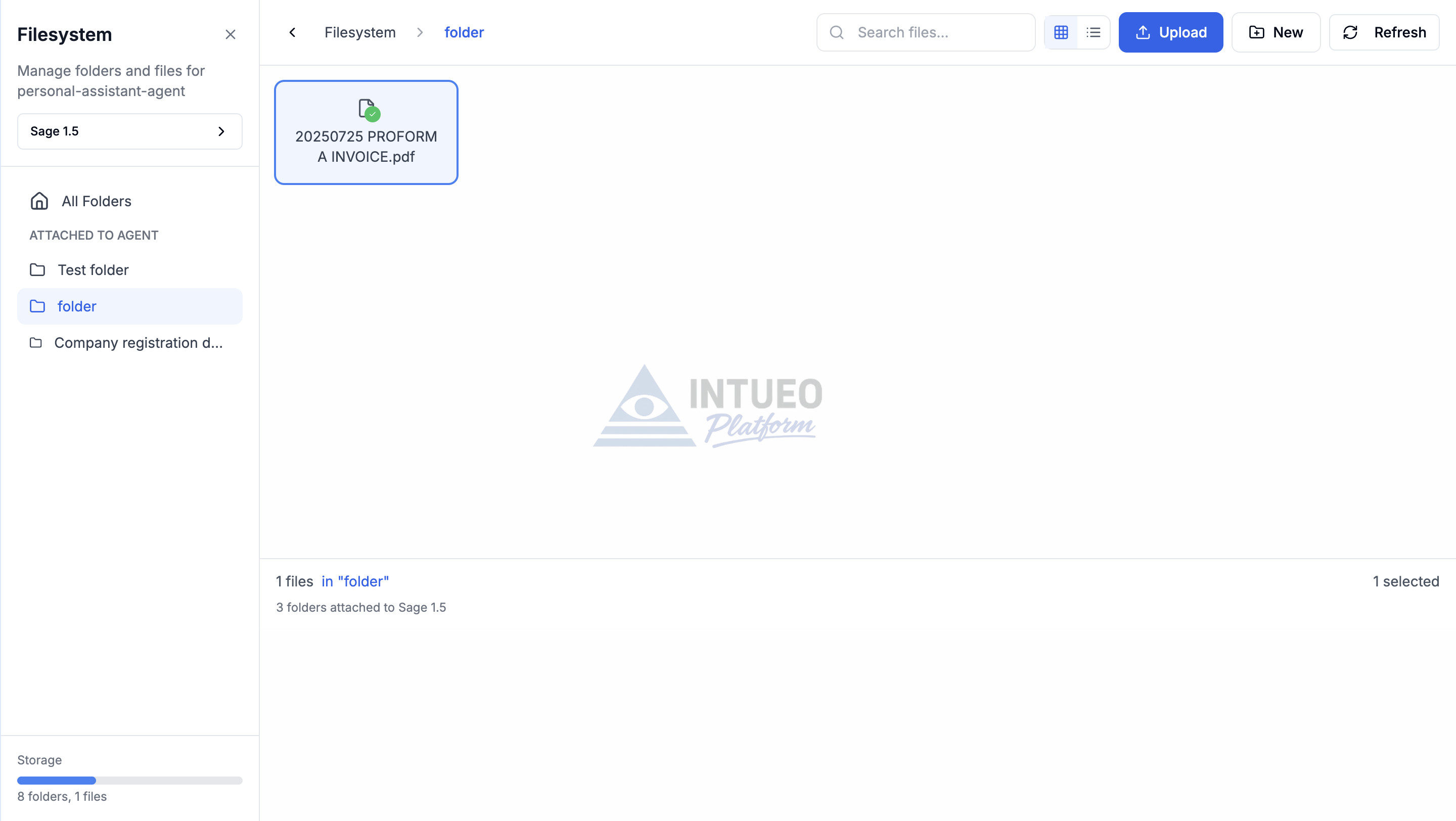
Folder view showing file management, search capabilities, and attached folders
Unlike traditional AI tools that hide what's happening behind the scenes, Sage provides complete visibility into your context window.
Organize your knowledge base in a way that makes sense for your workflow and business needs.
Use clear folder and file names to help Sage navigate efficiently
Begin with key documents, expand as you understand your needs
Include folder descriptions to provide context about their purpose
Expand context window for file-heavy workflows (100k-200k tokens)
Group related files together for easier navigation and retrieval
Manage which folders are attached to which agents for security
Start organizing your documents and let Sage help you work smarter